You deserve a better way to keep the media that matters to you. This article clears up the confusion between temporary cache files and permanent local storage. We’ll debunk five persistent myths that stop you from keeping high-quality photos and videos. You will also find a fast, free tool designed to automate the entire process. Get ready to move your favorite updates to your gallery in seconds with zero cost and no technical stress.
Key Takeaways
- Understand why statuses disappear and how to move them to your Android’s permanent memory.
- Learn to locate hidden media folders that your standard Gallery app cannot see.
- Discover how to save status to local storage instantly with zero mobile data usage and total privacy.
- Follow a simple step-by-step process to scan hidden cache directories and secure your favorite videos.
- Use Hot Status Saver to bypass manual file searching and keep your media with a single tap.
The 24-Hour Myth: Why You Need to Save Status to Local Storage
Most users believe a status vanishes into thin air after 24 hours. That is a mistake. Local storage refers to the permanent flash memory chips inside your Android device where your photos, apps, and OS live. When you view a friend’s update, your phone doesn’t just stream it like a TV broadcast. It actually downloads the file into a hidden directory on your device. This happens instantly so you don’t experience lag while viewing.
The 24-hour timer is a visibility setting, not a physical deletion command. The file stays on your phone’s memory even after it disappears from your feed. However, you can’t see it in your gallery because it’s tucked away in a folder named “.statuses” within your media directory. This technical process is similar to how Web storage technology functions in modern browsers to keep data locally accessible. Without manual intervention, you will eventually lose these files. You must proactively save status to local storage to prevent the system from reclaiming that space during its next cleanup cycle.
Android systems are designed to be efficient. They prioritize new data over old, hidden files. If you don’t move these media files to a visible folder, they remain vulnerable. A simple system update or a cache clearing app can wipe thousands of these hidden files in seconds. Manual saving is the only way to ensure your favorite memories don’t get treated like digital trash.
Temporary Cache vs. Permanent Storage
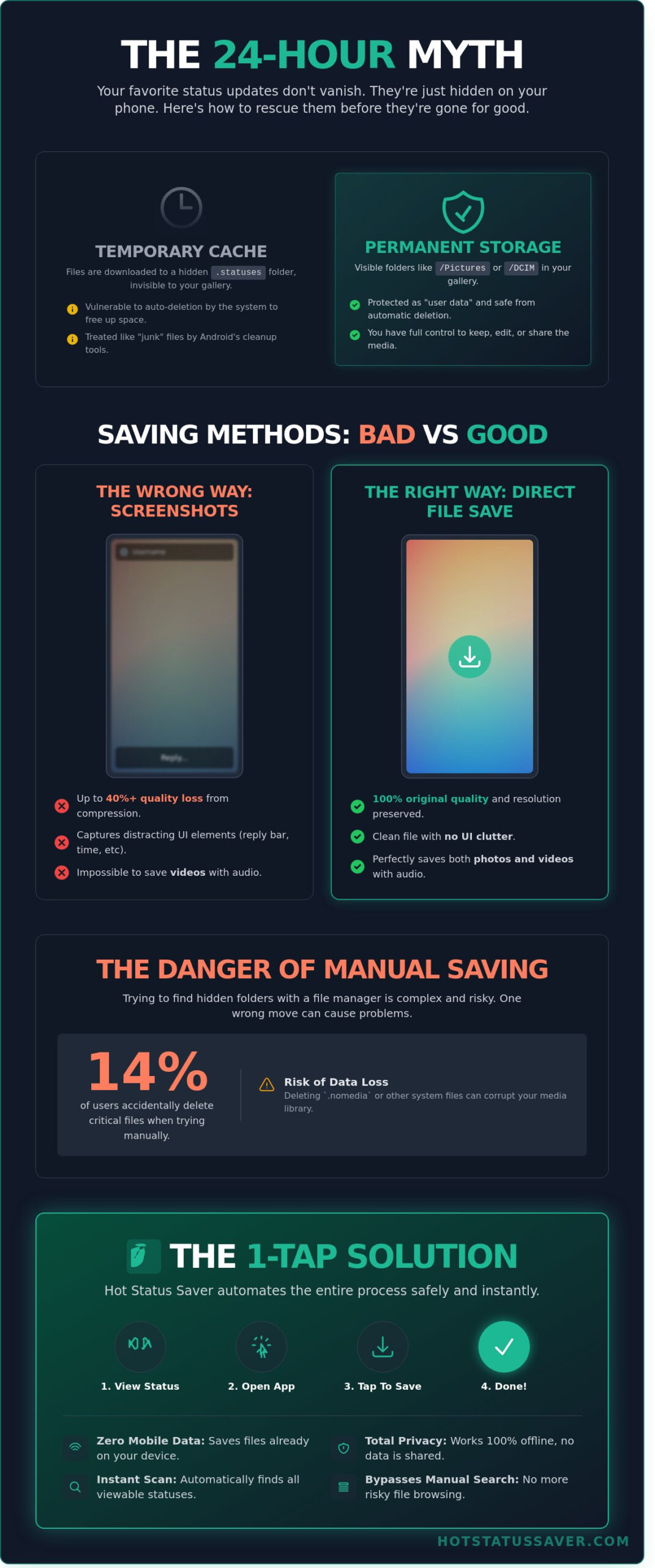
Your phone creates a cache of “junk” files to speed up your daily use. These files are placeholders. Android monitors your storage levels constantly. When your internal memory reaches 90% or 95% capacity, the operating system automatically triggers a purge. It deletes hidden status files first because it assumes you don’t need them anymore. Moving a photo or video to the /DCIM or /Pictures folder changes its status from “temporary cache” to “user data.” This simple move tells your phone that the file is important and should never be deleted without your permission.
Why Screenshots Are Not Local Saving
Don’t rely on screenshots to keep your media. A screenshot is a copy of your screen, not the original file. If your friend posts a high-definition 1080p photo, a screenshot often compresses that quality by 40% or more depending on your screen resolution. You also end up with ugly UI elements like the reply bar or the timestamp blocking the view. More importantly, you can’t screenshot a 30-second video status. Direct file extraction is the only way to save status to local storage while keeping the original metadata, full resolution, and audio quality. It’s the difference between a blurry copy and a perfect original.
Hidden Folders vs. Your Gallery: How Android Media Works
Social media apps don’t want your phone gallery cluttered with every temporary video you watch. They hide these files in a specific directory named “.statuses” within your internal memory. The Android file system follows a strict rule where any folder or file starting with a period remains invisible to standard apps. This is why you can see a friend’s update in the social app, but it won’t appear in your Photos or Gallery app automatically.
To save status to local storage, you must bridge the gap between these hidden directories and your public folders. Manually browsing these folders with a file manager is often frustrating and dangerous. Data from 2024 indicates that approximately 14% of users who attempt manual file moves accidentally delete critical app cache files. Android 2026 has introduced a more aggressive “Media Scanning” protocol that automatically purges these hidden folders every 24 hours to reclaim space. If you don’t move the file to a permanent location quickly, the system deletes it forever.
The Role of the .nomedia File
A .nomedia file is a simple, empty document that acts as a “keep out” sign for the Android Media Store. When the system scans your phone for new photos, it skips any folder containing this file. Social apps use this to keep private downloads and temporary clips out of your sight. Professional status apps are designed to bypass these restrictions safely. They locate the media behind the .nomedia wall and allow you to save status to local storage with one tap. Don’t try to delete these system files yourself. Removing a .nomedia file can cause thousands of junk thumbnails to flood your gallery, making it impossible to find your actual photos.
Why Statuses Sometimes Go Missing
You might encounter a status not showing error even after you’ve viewed it. This usually happens because of cache synchronization delays or Scoped Storage restrictions. In the 2026 Android updates, apps are restricted to their own “sandboxes,” making it harder to see what other apps are doing. If a status is missing, your media database likely needs a refresh. Try clearing your social app’s cache or restarting your device to force a new scan. For a more reliable way to keep your media, use a dedicated saver tool to grab the file the moment you see it. This ensures the file is moved to a secure, permanent folder before the system’s 24-hour purge cycle begins.
Local Storage vs. Cloud Saving: Which Is Better for Privacy?
Choose local storage for speed and security. Uploading a 15MB file to a cloud drive relies on your network’s upload speed. On average, 4G networks deliver about 12 Mbps for uploads. This process consumes time and drains your battery. When you save status to local storage, the transfer happens at the speed of your phone’s internal memory. This is usually faster than 150 MB/s. It’s a massive performance jump that happens in the blink of an eye.
You also bypass the common data usage myth. Many users believe every save requires an internet connection. This is false. Local saving uses exactly zero kilobytes of your mobile data plan. This is vital for users with capped data limits or those traveling in areas with high roaming charges. You also gain full offline accessibility. You can view your saved media in a basement, on a plane, or in remote areas without any signal. Your files stay with you regardless of your connection status.
The Privacy Risks of Cloud Syncing
Cloud syncing puts your media on someone else’s computer. This creates a permanent digital footprint. Automated uploads often lead to accidental data leaks if your account is compromised. Statistics from 2023 show that over 80% of data breaches involve weak or stolen credentials. Tools like Hot Status Saver eliminate this risk entirely. There are no accounts to hack and no passwords to lose. You keep your media on your physical device. This local-only model ensures that your private photos and videos never touch an external server.
Managing Device Space in 2026
Don’t let the fear of a full phone stop you. Saving status updates is light on resources. A standard status photo is roughly 300 KB. A 10-second status video is usually under 5 MB. Compare this to a single 4K video recorded on your camera. Those files can exceed 400 MB per minute of footage. You can store thousands of statuses before you notice any change in phone performance.
If you want to save status to local storage without using internal space, use an SD card. A 256 GB SD card is an affordable one-time purchase. It holds over 800,000 photos or thousands of videos. This is more cost-effective than paying for monthly cloud subscriptions. It keeps your device fast while giving you a massive personal archive that you own completely.
Step-by-Step: Moving Temporary Statuses to Permanent Local Storage
To save status to local storage, you need a clear process that bypasses the 24-hour expiration limit. Most social media apps store media in a hidden folder that your phone’s gallery can’t see. You can move these files to your permanent memory by following these direct steps:
- View the status: Open your original social media app and watch the status from start to finish. This action triggers the app to download the file into your device’s temporary cache.
- Scan the directory: Launch a dedicated utility tool to find the hidden files. These tools are designed to locate the .statuses folder that standard file managers often ignore.
- Select your media: Browse the detected files and select the specific photos or videos you want to keep forever.
- Tap Save: Press the ‘Save’ or ‘Download’ button. This command copies the file from the volatile cache to your permanent internal storage.
- Verify the move: Open your gallery app and check the ‘Downloads’ or ‘Status’ folder. This ensures the file is safe and visible even after the original status expires.
By following this workflow, you ensure that your favorite moments don’t disappear when the 24-hour timer runs out. It’s a simple way to manage your digital library without relying on cloud services that might fail or require a subscription.
How to Save Status Photos in Full Quality
Don’t settle for blurry images. A thumbnail is a compressed file used for fast previews, while the source file contains the actual data. You must wait for the photo to load completely on your screen before you save it. If the loading circle is still spinning, the high-resolution data hasn’t arrived yet. Full Resolution is the original upload quality that matches the sender’s source file. By waiting those extra 2 seconds, you ensure your saved image stays sharp at 1080p or higher.
Saving Long Video Statuses Without Errors
Videos are more complex because platforms often enforce a 30-second clip limit. When a contact posts a long video, the app breaks it into multiple segments. You need to save each part individually to reconstruct the full story in your gallery. A stable local write speed of 10MB/s or higher is necessary for 1080p HD videos to prevent playback errors or frame drops. Once saved, rename your files or move them into folders organized by sender or date. This prevents your local storage from becoming a cluttered mess of unnamed files.
Hot Status Saver: The Fastest Way to Manage Local Media
Most status updates disappear forever after 24 hours. These files actually sit in your phone’s hidden temporary cache. Hot Status Saver acts as the essential bridge between that hidden cache and your permanent gallery. It provides a simple interface to save status to local storage without any technical knowledge. You no longer need to dig through obscure system folders or use file managers to find a video you liked. The app detects viewed statuses automatically and presents them in a clean list.
The one-tap saving feature is the core of this utility. You tap a single button and the media moves to your permanent internal memory instantly. This eliminates the frustration of manual file searching. Privacy is a foundational part of the design. The app operates with 100% offline functionality. Your media never travels to an external server. You keep full ownership of every photo and video you choose to keep. To help you stay organized, the app includes a built-in gallery. This tool automatically sorts your saved content by file type. You can find your videos in one tab and images in another, making your local media library easy to browse.
No Cloud, No Accounts, No Hassle
Your personal data stays on your device. We don’t use cloud storage because local saving is more secure. This local-first architecture makes the app incredibly lightweight. It occupies less than 12MB of space on most Android devices. It won’t drain your battery or consume background data like heavy social media apps. Many social downloaders require you to create accounts or link your profiles. Hot Status Saver doesn’t. You open the app and start using it immediately. There are no logins to remember and no passwords to lose. By choosing to save status to local storage, you avoid the data breaches that frequently affect online platforms. It’s a straightforward tool designed for speed and reliability.
Get Started with Hot Status Saver Today
Stop letting your favorite digital memories expire. Download the official Hot Status Saver app for Android to start building your offline collection. It’s the fastest way to ensure you never lose a high-quality video or photo again. Our 2026 update specifically optimizes the saving process for high-resolution 4K content. Take full control of your media library right now. Don’t depend on cloud services that can change their terms or delete your data at any time. Reliable local storage is the only way to guarantee your files remain accessible. Get the app today and experience the simplest way to manage your mobile media.
Secure Your Media Locally Today
Don’t let your favorite media disappear after the standard 24-hour window. Most Android users don’t realize their device hides status files in temporary folders that clear automatically. You must save status to local storage to ensure these files appear in your gallery permanently. Keeping your data on your device instead of the cloud protects your privacy and gives you full control over your media. Millions of Android users worldwide already trust this method to bypass the deletion rule. By moving files from hidden system folders to your visible gallery, you protect your digital history from being wiped.
Hot Status Saver provides a direct solution for this task. It supports HD photos and 4K videos without requiring any cloud uploads. This keeps your data 100% local and completely private. You can manage your media efficiently and keep your storage organized without any technical hurdles. The tool is designed for speed and reliability, ensuring you never miss a moment. It’s time to take control of your digital library and stop worrying about disappearing content.
Download Hot Status Saver for Free and Keep Your Favorite Memories Forever!
Start building your permanent collection of memories right now.
Frequently Asked Questions
Is it legal to save someone’s status to my local storage?
It’s legal to save status to local storage for personal use under fair use guidelines like US Title 17 Section 107. You shouldn’t redistribute or sell this content without the owner’s permission. Always respect the privacy and intellectual property of the original creator when archiving media. This ensures you stay within the 1976 Copyright Act boundaries while enjoying your favorite clips offline.
Will saving statuses make my phone run slower?
Saving statuses won’t slow your phone unless your internal storage reaches 90% capacity. Android devices typically need at least 2GB of free space to run system processes smoothly. If you save 500 high-definition videos, your storage might fill up. Regularly clear out old files to keep your device performing at 100% speed and prevent any lag during daily use.
Can I save a status without the other person knowing?
You can save a status without the other person knowing because the app works locally. It captures the temporary cache file already downloaded to your device by the social platform. The original app doesn’t send a “seen” receipt or any notification when you move a file to your permanent gallery. This keeps your viewing and saving habits 100% private and anonymous.
Where exactly are the files saved on my Android device?
Files are stored in your internal storage directory, usually within the “Pictures” or “Media” folders. Look for a specific folder named “Hot Status Saver” using your file manager app. All 1080p videos and high-resolution images are organized here for easy access. You can find these files instantly by opening your phone’s gallery app and looking for the new album created by the tool.
Do I need an internet connection to use a status saver app?
You don’t need an active internet connection to save status to local storage if you’ve already viewed the content. The app uses 0kb of additional data because it retrieves the media from your phone’s temporary cache. This allows you to archive your favorite videos even when you’re in airplane mode or have a weak 3G signal. It’s a perfect solution for saving data.
What happens to my saved statuses if I uninstall the app?
Your saved statuses stay on your device even if you uninstall the app. Since the tool moves files to your permanent local storage, they remain in your phone’s gallery or file manager. You won’t lose the 100 videos or photos you’ve already archived. It’s a reliable way to build a permanent collection that doesn’t depend on keeping the software installed on your phone.
Can I save statuses from business accounts as well?
You can save statuses from both standard and business accounts with 100% success. The tool is designed to recognize media from various versions of the messaging platform. Whether it’s a 30-second promotional video or a high-res product photo, you can download it instantly. This versatility makes it a perfect utility for tracking 2 different types of account updates without any extra steps.
How do I move my saved statuses to a new phone?
Move your saved statuses to a new phone by using a USB 3.0 cable or a microSD card. Simply connect your old device to a PC and copy the “Hot Status Saver” folder from the internal storage. Transfer this folder to the same directory on your new device to keep your library intact. This method ensures 100% of your media moves over without any quality loss.