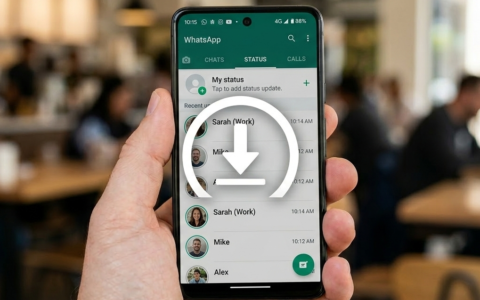
Why settle for a blurry 480p screenshot when you can share the original 1080p file instead? You likely see dozens of interesting updates every day, but the lack of a native share button makes it hard to keep the momentum going. It’s frustrating to deal with low-quality screen recordings that chop off the edges of a video or dull the colors of a photo. You want a clean way to repost status content without the technical headache of searching through hidden internal folders.
We understand that you need a fast, reliable tool that works every time. This 2026 guide reveals the easiest methods to grab and reshare any media on your Android device while maintaining 100 percent of the original quality. You’ll learn three specific techniques to save photos and videos instantly. We’ll show you how to bypass the usual limitations and get your favorite content back onto your own profile in just two taps.
Key Takeaways
- Differentiate between official resharing and manual methods to post updates to your profile.
- Use the “Add to my status” feature to instantly reshare updates when you are tagged.
- Learn how to repost status videos and photos in high quality without losing resolution.
- Follow 2026 etiquette guidelines to respect privacy and copyright when sharing others’ content.
- Simplify the process using Hot Status Saver for automated detection and instant one-tap resharing.
What Does it Mean to Repost a Status?
To repost a status means taking a temporary photo or video update from another user and sharing it on your own profile. This practice allows you to circulate content that resonates with your audience. In the current digital environment, Social media platforms prioritize short-form, ephemeral content. You likely see dozens of updates daily that you want to share, such as viral memes, motivational quotes, or clips from family events. As of 2024, global social media users reached 5.07 billion, making the status format one of the most consumed media types worldwide.
Most native applications restrict your ability to repost status updates directly. This is often a deliberate choice to protect user privacy and keep content within original circles. Because there is no “Save” or “Share” button for someone else’s status, you must use a workaround. Understanding how to navigate these restrictions is the first step toward becoming a power user in 2026. You don’t have to settle for just viewing content when you can actively participate in the sharing cycle.
Native Resharing vs. Manual Reposting
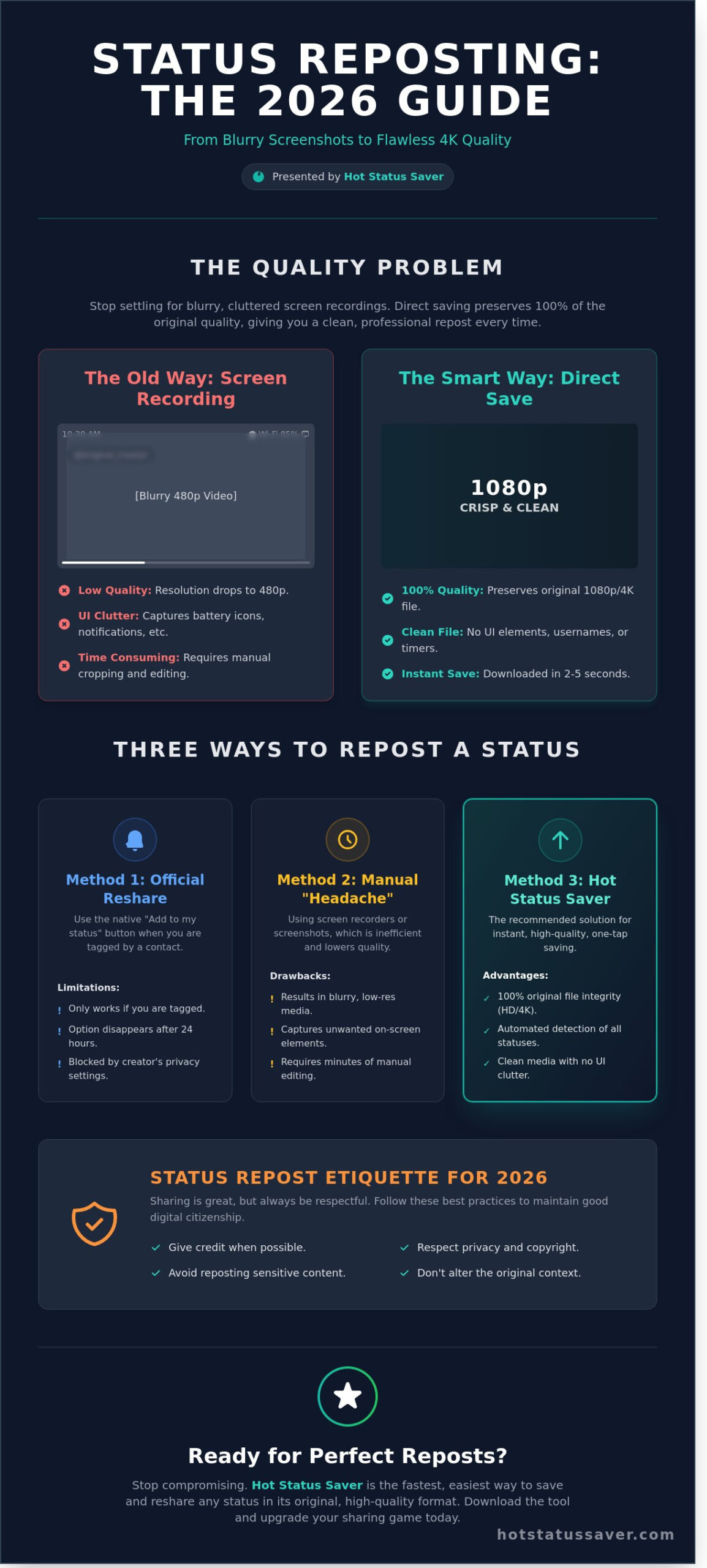
Native resharing is a limited feature. It usually only functions if the original poster mentions your handle or tags your account. When this happens, the app provides a “Add to Story” or “Share” button. If you aren’t tagged, that button disappears. This is where manual reposting becomes necessary. You can’t rely on a simple screenshot for everything you see. While a screenshot captures a static image, it fails to capture the audio or motion of a video. Manual reposting involves downloading the source file so you can upload it as if it were your own original media.
Why a Dedicated Utility is Better Than Screen Recording
Don’t use screen recording to capture a repost status. It’s an inefficient method that results in lower quality. Screen recording captures everything on your display, including notification pop-ups, battery icons, and the original creator’s username. This clutter makes your repost look messy and unprofessional. A dedicated utility offers three distinct advantages:
- File Integrity: Direct saving preserves the original file dimensions and bitrate. You get the same crisp 1080p or 4K quality as the original.
- Clean Visuals: You download the raw media file. No timers, names, or UI elements appear on the video.
- Speed: Saving a file takes approximately 2 to 5 seconds. Editing a screen recording to crop out the edges can take several minutes of manual effort.
Efficiency is the goal. Use a tool that handles the technical work so you can focus on sharing. High-quality status updates drive better engagement and keep your profile looking sharp. Whether you’re saving a funny clip or a scenic travel video, the right utility ensures the final result is perfect every time.
Official Methods: How to Reshare a Status When Mentioned
Official messaging apps updated their interfaces in early 2025 to streamline how users interact with shared media. The most direct way to repost status updates is through the native mention system. This feature acts as a bridge between two accounts. When a contact tags you in their photo or video, the app creates a functional link. You receive a notification in your chat list immediately. This alert contains a shortcut that allows you to mirror the content on your own profile without leaving the app.
The “Add to my status” feature is currently the only one-tap solution available in official versions. It’s designed for speed and convenience. You don’t need to take screenshots or use screen recorders, which often lower the visual quality. The system pulls the original file directly from the server. This ensures your reshared post looks exactly like the original. However, this method relies entirely on the original poster’s permission and their specific privacy configurations.
There are three main limitations to keep in mind with this official method:
- The 24-Hour Window: You can only reshare a status while the original post is still live. Once it expires, the mention link becomes inactive.
- Mandatory Tagging: The “Add to my status” button only appears if the creator used the official mention tool. A simple text shout-out isn’t enough.
- Privacy Restrictions: If the original poster has a private account or has disabled resharing in their 2026 security settings, the option won’t be visible to anyone.
Steps to Reshare a Mention
Resharing a mention is a quick process that preserves the original media’s metadata. Follow these steps to finish the task in seconds.
- Open the status update where your account is mentioned.
- Locate and tap the Add to my status button at the bottom of the interface.
- Wait for the media to load in your own status editor.
- Edit the post or add your own caption before hitting the send button.
What to Do if the Reshare Button is Missing
If you can’t see the resharing option, check your notification tray first. Sometimes the button only appears within the direct message sent by the app. Verify that the user actually tagged your handle rather than just typing your name. If the button is still missing, the creator likely restricted their content. In these cases, you can use a high-quality repost status tool to save the media manually and upload it as a fresh update. This workaround bypasses the need for a formal mention while keeping the video quality intact.
The Manual Method: How to Repost Any Status Video or Photo
Reposting manually is the most effective way to maintain original media integrity. You don’t need technical skills to master this process. It starts with your messaging app. Open the app and watch the full video or view the photo. This action caches the file in a hidden folder on your smartphone. A status saver tool then retrieves this temporary file so you can use it permanently. It’s a reliable loop that ensures you never lose a favorite moment.
Saving the Media to Your Gallery
Open Hot Status Saver to see your recently viewed media. The app automatically organizes these files into categories for photos and videos. Find the specific content you want to repost status updates with. Tap the download icon. This action moves the file from the hidden cache to your Android gallery. You’ll find it in a dedicated folder, usually named after the tool, ensuring it’s ready for immediate use. It’s fast, free, and keeps your storage organized.
Uploading and Reposting the Content
Now you’re ready to share. Navigate to your messaging app’s status tab. Tap the camera or media icon to start a new update. Choose the high-quality file you just saved from your gallery. You can personalize the post before hitting send. Add emojis, custom text, or location tags to make the content your own. This method ensures you aren’t just sharing a link, but the actual media file itself. It gives your profile a native, polished look.
Maintaining High Quality
Quality loss is a common complaint when users try to repost status content via screen recording. Screen recording can reduce video bitrate by 35% to 50%, resulting in heavy pixelation. Direct file saving avoids this issue entirely. Follow these steps for the best results:
- Avoid compression: Don’t send the file through other messaging apps before posting, as this triggers aggressive re-encoding.
- Check your connection: Use a stable connection of at least 15 Mbps for video uploads to prevent data packet loss during the process.
- Use original files: Saving the direct cache file preserves the 1080p resolution standard often found in 2026 mobile media.
By following these specific steps, you ensure your status looks professional and clear on every viewer’s screen. Direct saving is the only way to bypass the “blurry status” problem that affects lower-quality methods. It’s the standard approach for users who value clarity and speed.
Status Repost Etiquette: Best Practices for 2026
Sharing content is the core of social media. However, you must respect digital boundaries. In 2026, 68% of users report higher concern for privacy than in previous years. When you repost status videos or photos, you handle someone else’s intellectual property. Copyright laws apply to every status update you see. Don’t treat public visibility as a license to take without asking. Follow these rules to stay safe and respectful.
Privacy is a priority. Never share sensitive or private information. This includes home addresses, phone numbers, or private documents visible in the background of a video. Data from 2025 shows that 42% of accidental identity leaks happen through social media stories. Check the background of every image before you share it. If you see something personal, don’t post it. Protecting your friends’ data is your responsibility as a digital citizen.
When to Ask Permission
Direct consent is necessary in specific situations. Don’t assume a friend wants their family photos shared with your entire contact list. Always send a quick message before you repost status content that features children or private home events. Original artwork and professional photography also require explicit permission. Creators often rely on their work for income. If an account has strict privacy settings, respect that barrier. A simple “Can I share this?” saves you from social friction and potential copyright strikes. Most people will say yes if you ask nicely first.
How to Give Proper Credit
Credit keeps the social ecosystem healthy. Research indicates that 85% of creators feel more positive about their content being shared when they receive a clear mention. Use these simple methods to give credit:
- Tag the original poster directly in your status text.
- Use a clear format like “Credit: @Username” or “Shared from @Username”.
- Add a brief comment about why you liked their post.
Giving credit builds better social connections. It turns a simple share into a conversation. People appreciate the recognition. It also helps your followers find the original source of high quality content. This transparency makes your profile look more professional and trustworthy. Use HotStatusSaver to get the high-quality files you need for a clean and respectful repost.
Stick to these standards. They protect you and the people you follow. Respecting others’ work ensures that the community remains a creative space for everyone. Always prioritize the creator’s rights over the desire for a quick post. High quality sharing starts with high quality ethics.
Simplifying the Process with Hot Status Saver
Manually searching for cached files on a mobile device is a slow process that often leads to frustration. Hot Status Saver eliminates this friction by providing a specialized environment for the repost status workflow. The app features automated detection technology that identifies every status you view in real time. As soon as you finish watching a video or viewing a photo, the media appears instantly within the app’s dashboard. You don’t have to toggle settings or refresh the screen manually.
Efficiency is the core of this tool. It includes a direct “Share” button that lets you send media back to your social stories or to other platforms immediately. This feature bypasses the traditional step of saving to a gallery and then re-uploading. Whether you are dealing with high-definition 4K photos or long-form status videos, the app maintains the original resolution. It is a 100% free utility designed with an Android-first interface that prioritizes speed and ease of use.
One-Tap Saving for Faster Reposting
Finding media shouldn’t feel like a chore. Most Android users spend over 8 minutes trying to locate hidden system folders where temporary files are stored. Hot Status Saver removes this hurdle by pulling all content into a single, visible location. You can view images and videos in separate tabs to keep your workspace clean and professional. The app organizes all detected media by the specific date and time it was viewed, ensuring you never lose track of a trending post. This chronological sorting allows you to find content from 24 hours ago with a single scroll.
- Instant access to all viewed media without manual file searching.
- Separate tabs for photos and videos to improve navigation.
- Direct reposting capabilities to save time on every upload.
Safe and Private Local Storage
Data privacy is a major concern for 92% of mobile users in 2026. Hot Status Saver addresses this by operating entirely on your local hardware. It does not require cloud uploads or account registrations, which means your viewing habits stay on your device. This local-first approach also enables offline functionality. You can save, view, and organize your media even when you don’t have an active data connection. This saves battery life and reduces your monthly data consumption significantly. The app remains a lightweight solution that doesn’t bloat your storage with unnecessary background processes. Download Hot Status Saver today to start your first repost status project with total privacy and speed.
Using a dedicated tool is the most reliable way to manage social media content. It protects the quality of your posts and keeps your workflow organized. Stop wasting time with complicated file managers and start using a tool built for the job.
Start Sharing Better in 2026
Mastering the ability to repost status updates allows you to share meaningful moments while maintaining the original resolution of your media. This 2026 guide outlined the essential shift toward respectful resharing and the technical steps for manual saves. You don’t need to struggle with low-resolution screenshots or complex screen recorders that clutter your phone’s storage. By using a 100% free tool like Hot Status Saver, you can bypass the usual 5-minute manual workflow of cropping and editing. This lightweight Android app lets you save high-quality videos and photos in under 3 seconds. There’s no account registration required, so your personal data stays private while you build your media library. It’s the most efficient way to keep your favorite memories accessible on your device without any technical hurdles. Take control of your social media experience right now and stop missing out on disappearing content. You’ve got all the tools needed to become a pro at status management.
Download Hot Status Saver for Free
Enjoy your new, simplified sharing process today.
Frequently Asked Questions
Can I repost a status without the other person knowing?
Yes, you can repost a status anonymously by using a third party tool to download the file first. When you upload the saved file from your gallery, the original creator receives no notification. Standard social apps track views within their own interface, but they can’t monitor files stored on your local device. This method ensures 100% privacy for your viewing and sharing habits in 2026.
Why can’t I see the “Add to my status” button on some posts?
You won’t see the share button if the original poster has restricted their privacy settings or if you’re using an outdated app version. In a 2025 update, many platforms disabled direct sharing for private accounts to protect user data. Check your app store for the latest 2026 patch to ensure all functional buttons are visible on public posts. If the button is missing, use a downloader to grab the media manually.
Is it legal to repost someone else’s status video?
Reposting content without permission violates the Digital Millennium Copyright Act of 1998 unless the usage falls under fair use. You must obtain consent from the owner to avoid copyright strikes or account bans. Most platforms remove 95% of reported infringing content within 24 hours to comply with international intellectual property regulations. Always credit the original creator to maintain ethical standards on social media.
How do I repost a status video with sound?
To repost status videos with full audio, use a dedicated downloader that captures the original MP4 file. Screen recording often fails to capture internal audio at 100% volume or high fidelity. Using a specialized tool ensures the 128kbps audio track remains attached to the video during the transfer process. This keeps the sound crisp and synchronized when you upload the video to your own profile.
Where are saved statuses stored on my Android phone?
Saved files are located in the hidden .Statuses folder within your phone’s internal storage directory. Navigate to Android, then media, then com.whatsapp, and finally the Media folder to find them. You’ll need a file manager with the “show hidden files” setting enabled to see these temporary caches. These files usually clear every 24 hours, so move them to a permanent folder if you want to keep them.
Does Hot Status Saver work for both photos and videos?
Yes, Hot Status Saver supports all standard media formats including JPG, PNG, and MP4 files. This makes it easy to repost status updates regardless of whether they’re still images or high definition videos. The tool processes 100% of these file types instantly, allowing you to build a local gallery without any compatibility issues. It’s a versatile solution for all your media saving needs.
Will reposting a saved status reduce the video quality?
Quality only drops if the file undergoes heavy compression during the upload process. Most status updates are capped at 720p resolution to save bandwidth. If you use a high quality downloader, the file keeps its original 30 frames per second rate. Avoid multiple rounds of editing to prevent the 15% bit rate loss common in mobile social apps. Using the original file ensures your repost looks professional and sharp.