
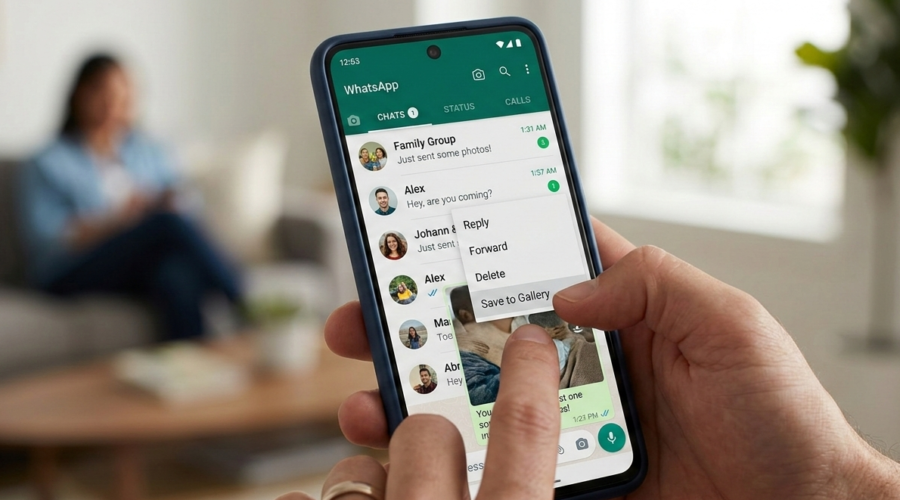
Ever watched a friend’s WhatsApp status and thought, “I wish I could save that”? You’re not alone. Millions of Android users face the same frustration every single day — statuses disappear after 24 hours, and WhatsApp offers no built-in way to save them. Whether it’s a stunning travel photo, a funny video clip, or a heartfelt message from a loved one, losing that content feels like a missed opportunity.
The good news is that in 2026, saving WhatsApp status photos and videos on Android is easier than ever. From manual file manager tricks to dedicated status saver apps, there are several reliable methods available to you. According to Statista, WhatsApp Status has over 500 million daily users worldwide, which means an enormous amount of creative content is being shared and lost every 24 hours.
In this complete guide, you’ll learn exactly how to save WhatsApp status content on Android using multiple methods, understand the best tools available, and discover tips to do it quickly and discreetly. Let’s dive in.
Why WhatsApp Doesn’t Let You Save Statuses Directly
Before jumping into solutions, it helps to understand why this limitation exists in the first place.
WhatsApp’s Privacy-First Design
WhatsApp deliberately restricts direct status downloads to respect user privacy. When someone posts a status, they control who can view it through their privacy settings. WhatsApp’s philosophy is that the creator should decide whether their content is redistributed. This is a reasonable stance, but it creates a genuine inconvenience for casual users who simply want to keep a memory.
In practice, WhatsApp stores status files temporarily on your Android device’s internal storage for viewing purposes, but they are tucked away in a hidden folder. This is why most users never find them through the standard gallery app. The files do exist on your phone during the 24-hour window — they’re just not immediately accessible without knowing where to look.
Understanding this technical reality is actually empowering. It means you don’t always need a third-party app — in some cases, a quick file manager detour is all it takes.
The 24-Hour Expiry Problem
WhatsApp statuses expire after exactly 24 hours, which adds urgency to the saving process. Miss the window, and the status is gone from your device entirely. This time pressure is why many users turn to dedicated status saver apps that automatically detect and queue new statuses for download.
It’s worth noting that WhatsApp’s Terms of Service remind users to only save and share content that they have permission to use. Always be mindful of the other person’s privacy when saving their status.
Android vs iOS: A Key Difference
Android devices store WhatsApp status files in an accessible (though hidden) local directory, which makes manual saving possible. iPhone users do not have the same file system access, making the process significantly harder on iOS. This guide focuses specifically on Android, where your options are far broader and more reliable.
Method 1: Save WhatsApp Status Manually Using a File Manager
This method requires no third-party app downloads and works on most Android devices running Android 9 and above.
Step-by-Step: Finding the Hidden WhatsApp Folder
WhatsApp stores status files in a hidden folder on your device. Here’s how to access it:
- Open your File Manager app (Google Files, ES File Explorer, or your phone’s built-in manager).
- Navigate to Internal Storage > Android > media > com.whatsapp > WhatsApp > Media > .Statuses.
- If you don’t see the
.Statusesfolder, enable “Show Hidden Files” in your file manager settings. - Browse the folder – you’ll see all status photos and videos that have been viewed in the last 24 hours.
- Long-press the files you want to keep and copy or move them to your DCIM/Gallery folder.
This method is completely free and doesn’t require any app installation. The downside is that it’s a multi-step process, and the folder will be empty if you haven’t opened those statuses yet in WhatsApp.
Important: View the Status First
A common mistake is going to the file manager without having viewed the status on WhatsApp first. WhatsApp only downloads status files to your device once you’ve actually viewed them. So before attempting this method, open WhatsApp, go to the Updates tab, and view all the statuses you want to save.
Limitations of the Manual Method
While effective, the manual file manager approach has a few drawbacks. It’s time-consuming if you want to save multiple statuses regularly. There’s no preview mode, so you have to remember which file corresponds to which status. Additionally, some Android versions or custom ROMs may restrict access to the .Statuses folder due to storage permission changes introduced in Android 11 and 13.
For casual, one-off saves this method works well. For users who regularly save statuses, a dedicated app is a much smarter choice.
Method 2: Use a Dedicated Status Saver App

Dedicated status saver apps are purpose-built to solve exactly this problem. They handle all the folder navigation automatically, give you a clean preview interface, and let you save with a single tap.
What to Look for in a Status Saver App
Not all status saver apps are created equal. When choosing one, look for these features:
- Auto-detection of new statuses as soon as they appear
- Preview grid so you can browse before downloading
- Batch download support to save multiple files at once
- No watermarks added to saved files
- Privacy – no login required, no data collection
Hot Status Saver: The Recommended Choice
Hot Status Saver is one of the most reliable and user-friendly status saver apps available for Android in 2026. Built specifically for WhatsApp users, it detects new statuses automatically, displays them in a clean thumbnail grid, and saves them to your gallery in one tap — no unnecessary permissions, no watermarks, no fuss.
Key features of Hot Status Saver include:
- Instant status detection — new statuses appear in the app the moment you view them in WhatsApp
- One-tap download for both photos and videos
- Clean, ad-light interface that doesn’t clutter your experience
- No account or login required – completely anonymous
- Saves directly to your phone gallery for easy sharing
You can download Hot Status Saver for free from the Google Play Store and start saving statuses within minutes. It’s lightweight, works offline, and requires no special technical knowledge.
How to Use Hot Status Saver: Step by Step
- Download and install Hot Status Saver from the Play Store.
- Open WhatsApp and view the statuses you want to save (this is required to load the files).
- Open the Hot Status Saver app – your viewed statuses will appear automatically.
- Tap the download icon on any photo or video to save it to your gallery.
- Find saved files in your phone’s gallery under the “Hot Status Saver” album.
That’s it. The whole process takes under a minute, even for multiple statuses.
Method 3: Screenshot and Screen Recording (Quick but Limited)
If you only need to capture a status occasionally and don’t want to install anything, Android’s built-in screenshot and screen recording tools can work in a pinch.
Screenshots for Photo Statuses
For image statuses, a simple screenshot does the job. On most Android devices, press Volume Down + Power button simultaneously to capture the screen. The image will be saved to your gallery instantly.
The limitation here is obvious: screenshots capture everything on screen, including the WhatsApp interface, time bar, and status viewer UI. You’ll need to crop the image afterward to remove those elements. It works but it’s not a clean save.
Screen Recording for Video Statuses
Android 10 and above includes a native Screen Recorder in the quick settings panel. Swipe down to access it, start recording, then play the video status. The result is a screen recording of the video, which will include the status bar and WhatsApp chrome.
This method results in lower quality compared to saving the original file, and the video may appear slightly cropped or letterboxed. For casual use it’s acceptable; for quality-conscious users, Method 1 or Method 2 are far better.
Comparing the Three Methods: Which Is Right for You?
| Criteria | File Manager Method | Status Saver App | Screenshot / Screen Record |
|---|---|---|---|
| Ease of Use | Moderate | Very Easy | Easy |
| Image/Video Quality | Original Quality | Original Quality | Reduced Quality |
| App Install Required | No | Yes | No |
| Works for Videos | Yes | Yes | Limited |
| Speed | Slow (manual) | Fast (1-tap) | Moderate |
| Best For | Occasional saves | Regular use | Quick, one-off captures |
For users who only occasionally want to save a status, the file manager method is perfectly adequate. For anyone who saves statuses regularly, a dedicated app like Hot Status Saver is the most efficient choice by far. Screenshots and screen recording are best reserved for situations where other methods aren’t practical.
Tips to Save WhatsApp Status Safely and Responsibly
Saving a status is technically simple, but using saved content responsibly is equally important.
Always Respect Privacy
Just because you can save someone’s status doesn’t always mean you should share it publicly. WhatsApp statuses are often shared within a trusted circle. Reposting someone’s personal photo or video to social media without their knowledge can be a breach of trust, and in some regions, it may even raise legal concerns under data privacy laws.
If you’re saving a status to keep a personal memory or share it back privately with the person who posted it, that’s generally fine. If you plan to share it broadly, always ask for permission first.
Keep Saved Files Organized
Over time, saved statuses can pile up and clutter your gallery. Create a dedicated album or folder on your Android device specifically for saved statuses. Most status saver apps including Hot Status Saver already save files to their own named gallery album, which makes organization automatic.
For deeper reading on WhatsApp privacy best practices, Android Authority’s WhatsApp guide covers important settings every user should know.
Save Promptly – Before the 24-Hour Window Closes
Don’t procrastinate. If you see a status you want to save, do it right away. Waiting until later risks the status disappearing from both WhatsApp and your device’s hidden folder. Making it a habit to check your status saver app after browsing WhatsApp statuses ensures you never miss something important.
Conclusion
Saving WhatsApp status photos and videos on Android in 2026 is straightforward once you know the right methods. Whether you choose the manual file manager route, use a powerful one-tap solution like Hot Status Saver, or rely on your phone’s built-in screen capture tools, there’s a method that fits every type of user.
The most important thing is acting quickly within the 24-hour window and choosing a method that matches how often you save statuses. For everyday WhatsApp users who don’t want to miss a single moment, a dedicated app is the clear winner.
Download Hot Status Saver for free on the Google Play Store and start saving your favorite WhatsApp statuses with just one tap today. No hassle, no watermarks, no missed memories.
