WhatsApp has become the primary communication platform for billions of users worldwide, exchanging countless photos every day. Whether it’s vacation snapshots from friends, important business documents, or fleeting status updates, knowing how to efficiently handle photo download WhatsApp features is essential for managing your digital memories. This comprehensive guide explores every aspect of downloading photos from WhatsApp in 2026, from automatic saves to manual methods, status photo preservation, and privacy considerations.
Understanding WhatsApp Photo Download Basics
WhatsApp offers multiple ways to download and save photos, each suited to different needs and preferences. The platform’s default behavior automatically saves media to your device, but many users don’t realize they have granular control over this process.
When someone sends you a photo in WhatsApp, the app typically downloads it automatically when you’re connected to Wi-Fi or mobile data. This automatic download creates a copy in your phone’s internal storage, specifically in the WhatsApp Images folder. However, this behavior can be customized based on your storage availability, privacy preferences, and data plan considerations.
Automatic vs. Manual Photo Downloads
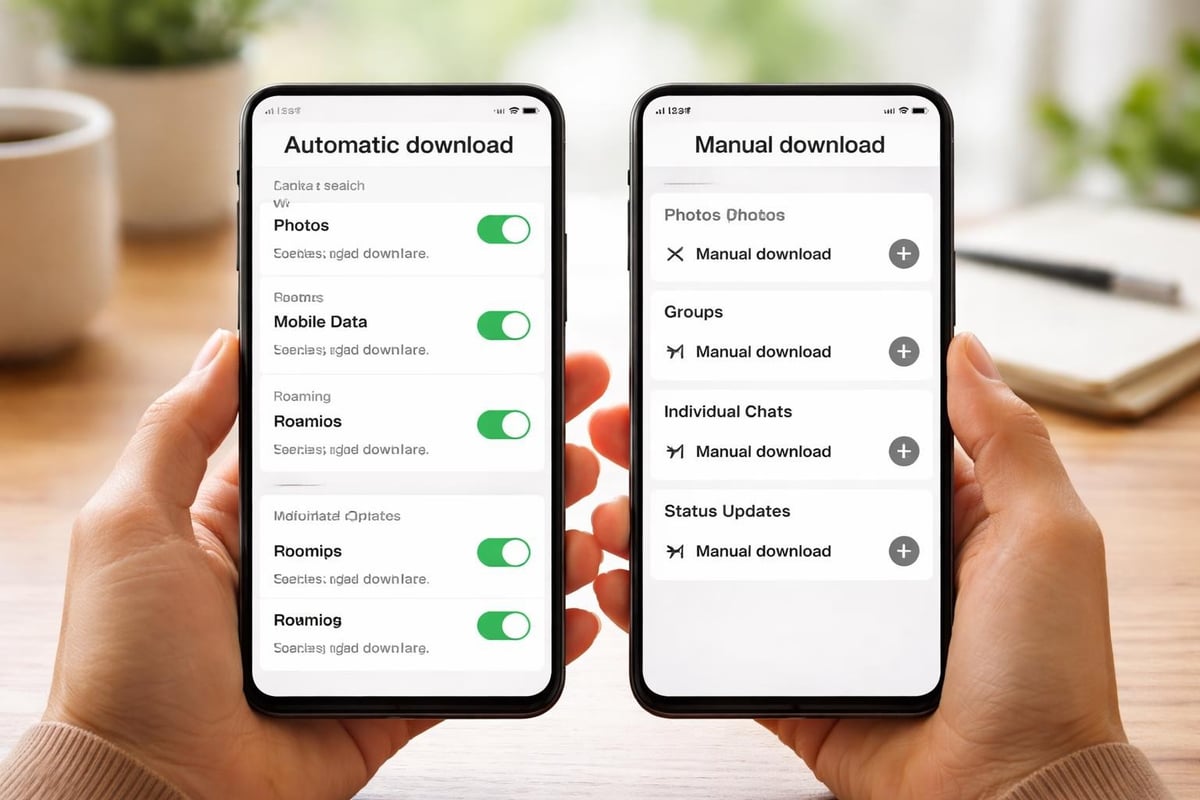
The distinction between automatic and manual downloads significantly impacts your WhatsApp experience. Here’s how each method works:
Automatic Download Features:
- Photos download immediately when received
- Images appear in your device’s gallery app
- Works across Wi-Fi, mobile data, or roaming
- Can be configured separately for different connection types
- Applies to individual chats, group chats, or both
Manual Download Benefits:
- Complete control over which photos you save
- Reduced storage consumption
- Lower data usage on metered connections
- Enhanced privacy by preventing unwanted media saves
- Better organization of your photo library
Configuring Photo Download WhatsApp Settings on Android
Android users have comprehensive control over how WhatsApp handles photo downloads. These settings can be accessed and customized to match your specific needs.
To configure photo download WhatsApp settings on Android, open WhatsApp and tap the three-dot menu in the top-right corner. Select Settings, then navigate to Storage and Data. Here you’ll find Media Auto-Download options that control when photos are saved automatically.
Step-by-Step Android Configuration
- Open WhatsApp Settings and select Storage and Data
- Choose When Using Mobile Data to set download preferences for cellular connections
- Select When Connected on Wi-Fi for Wi-Fi download rules
- Configure When Roaming to avoid expensive roaming charges
- Toggle specific media types including Photos, Audio, Videos, and Documents
| Connection Type | Recommended Setting | Storage Impact | Data Usage |
|---|---|---|---|
| Mobile Data | Photos only | Medium | Moderate |
| Wi-Fi | All media types | High | None (local) |
| Roaming | No media | None | Zero |
For users who want to learn how to stop WhatsApp from automatically saving photos, the process involves disabling the “Save to Gallery” option within media visibility settings for each individual chat.
Managing Photo Downloads on iPhone
iPhone users follow a slightly different path to manage photo download WhatsApp functionality, though the underlying principles remain the same. Apple’s iOS integration with WhatsApp provides a streamlined experience while maintaining privacy controls.
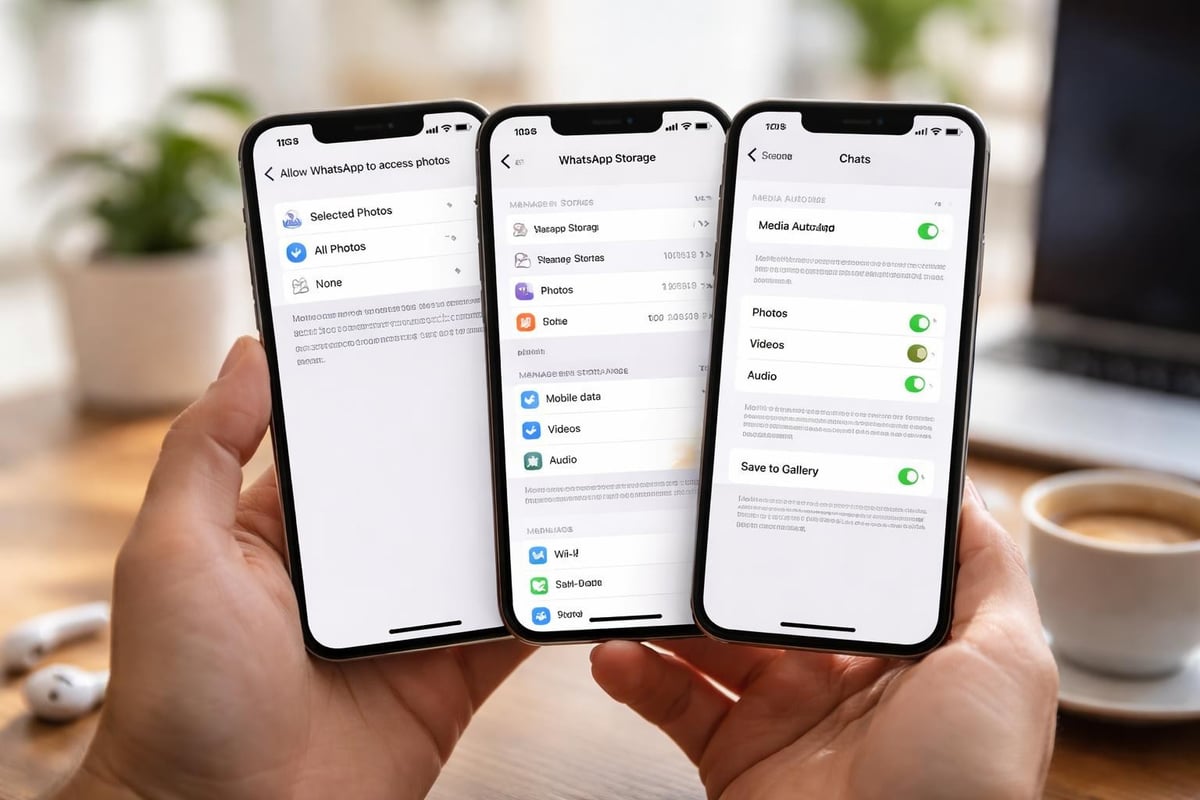
Navigate to WhatsApp Settings by tapping Settings at the bottom-right of the screen. Select Storage and Data, then tap Media Auto-Download to reveal your options. Unlike Android, iPhone users also need to consider how WhatsApp integrates with iOS Photos permissions.
iPhone-Specific Considerations
iOS Permission Layers:
- App-level permissions in iPhone Settings
- WhatsApp internal media download settings
- iCloud Photo Library integration
- Photo access for WhatsApp (read/write capabilities)
The dual-layer approach means you control both iOS-level photo access and WhatsApp-specific download behavior. This provides enhanced security but requires understanding both settings menus. Many iPhone users appreciate guidance from resources like IONOS’s comprehensive save WhatsApp photos tutorial, which covers both Android and iOS methods thoroughly.
Downloading WhatsApp Status Photos
Status updates present a unique challenge for photo download WhatsApp operations because they disappear after 24 hours. Unlike regular chat photos that remain accessible indefinitely, status photos require timely action to preserve.
WhatsApp’s native functionality doesn’t provide a straightforward “download” button for status photos, which creates frustration for users wanting to save meaningful memories. The standard approach involves taking screenshots, but this method reduces image quality and isn’t practical for videos.
The Status Photo Challenge
When you view someone’s status, WhatsApp temporarily caches the media on your device. However, this cache is cleared periodically, and the content vanishes after the 24-hour expiration window. For users who regularly want to preserve status photos, manual screenshot methods prove time-consuming and inefficient.
Limitations of Manual Status Saving:
- Screenshots reduce image resolution
- No video preservation capability
- Time-consuming for multiple status updates
- Doesn’t capture GIF animations properly
- Requires constant monitoring before expiration
This is where specialized solutions become valuable. Hot Status Saver automatically detects and saves status photos, videos, and GIFs before they disappear, eliminating the manual effort and quality loss associated with screenshots. The app works completely offline and doesn’t require any account or cloud uploads, ensuring your privacy remains intact.

Advanced Photo Download Techniques
Beyond basic settings, several advanced techniques help optimize photo download WhatsApp workflows for power users and those managing large volumes of media.
Selective Chat Media Saving
WhatsApp allows per-chat media visibility controls, enabling you to choose which conversations save photos to your gallery. This granular approach helps organize your photo library while preventing clutter from group chats with excessive photo sharing.
To configure selective saving, open any chat, tap the contact or group name at the top, scroll down to Media Visibility, and choose from three options: Default, Yes, or No. Setting it to “No” prevents that chat’s photos from appearing in your main gallery while still keeping them accessible within WhatsApp.
Using WhatsApp Web for Photo Downloads
WhatsApp Web provides an alternative method for photo download WhatsApp tasks, especially useful when transferring photos directly to your computer. When you receive photos through WhatsApp Web, you can download them with a simple click, bypassing mobile device storage entirely.
WhatsApp Web Download Steps:
- Open WhatsApp Web in your browser
- Navigate to the chat containing desired photos
- Click on the photo to open full view
- Click the download icon in the top-right corner
- Choose your save location on your computer
This method proves particularly valuable for professionals who need to transfer work-related photos to their desktop workflow without intermediate mobile device storage.
Privacy and Security Considerations
Photo download WhatsApp operations intersect with important privacy and security concerns that every user should understand in 2026. The automatic saving of photos creates potential privacy vulnerabilities if not properly managed.
When WhatsApp automatically saves photos to your gallery, they become accessible to any app with photo permissions on your device. This means photo backup services, editing apps, and social media platforms might upload these photos to cloud services without your explicit consent. According to recent analyses of WhatsApp’s privacy credentials, users need to remain vigilant about their privacy settings as the platform evolves.
Protecting Your Downloaded Photos
Key Privacy Measures:
- Disable auto-download for sensitive conversations
- Use media visibility controls on confidential chats
- Regularly review app permissions for gallery access
- Consider using secure folder features on Android
- Enable biometric locks for gallery apps
For comprehensive privacy protection, explore hidden WhatsApp settings that many users overlook, including read receipts, online status visibility, and profile photo privacy controls.
Managing Storage with Downloaded Photos
As photo download WhatsApp activity accumulates over time, storage management becomes critical. WhatsApp media can quickly consume gigabytes of device storage, especially in active group chats where members share photos frequently.
WhatsApp includes built-in storage management tools accessible through Settings > Storage and Data > Manage Storage. This interface displays which chats consume the most space and allows bulk deletion of media items while preserving the actual messages.
Storage Optimization Strategies
| Strategy | Storage Saved | Effort Required | Photo Access |
|---|---|---|---|
| Disable auto-download | 50-70% | Low | Manual only |
| Regular storage reviews | 30-50% | Medium | Selective |
| Cloud backup only | 40-60% | Low | Online access |
| Manual downloads only | 60-80% | High | Full control |
Implementing a combination of these strategies typically yields the best results. Most users benefit from disabling auto-download on mobile data while enabling it on Wi-Fi, then performing monthly storage reviews to delete unwanted media.
Quality Considerations for Photo Downloads
The quality of downloaded photos depends on several factors within WhatsApp’s compression and transmission systems. Understanding these factors helps you preserve maximum photo quality during the photo download WhatsApp process.
WhatsApp traditionally compressed photos to reduce data usage and speed up transmission. However, in 2026, the platform offers HD photo and video sharing options that significantly improve media quality. Users can now choose between Standard Quality (compressed) and HD Quality (minimal compression) when sending media.
Enabling HD Photo Downloads
To ensure you receive and save photos in the highest quality available:
- Request HD from senders: Ask contacts to enable HD quality when sharing important photos
- Check your download settings: Verify that HD download is enabled in Storage and Data settings
- Use Wi-Fi for HD media: HD photos consume more data and download faster on Wi-Fi
- Verify download completion: Ensure HD photos fully download before viewing (indicated by completion icon)
The HD quality toggle appears when you select photos to send, offering a one-time choice or default setting for future media sharing.
Troubleshooting Common Download Issues
Photo download WhatsApp problems occasionally arise due to connectivity issues, storage limitations, or app glitches. Recognizing and resolving these issues quickly ensures you don’t miss important photos.
Common Problems and Solutions:
- Photos not downloading automatically: Check your auto-download settings and ensure you have adequate storage space
- Slow download speeds: Switch from mobile data to Wi-Fi or check your internet connection
- Downloads failing mid-transfer: Clear WhatsApp cache or restart the app
- Photos not appearing in gallery: Verify media visibility settings for that specific chat
- Missing downloaded photos: Check the WhatsApp Images folder directly using a file manager
For persistent issues, clearing WhatsApp’s cache (not data) often resolves download problems without deleting your messages or media. Navigate to your device settings, find WhatsApp under Apps, and select Clear Cache.
Organizing Downloaded WhatsApp Photos
After mastering photo download WhatsApp mechanics, organizing your saved photos becomes the next challenge. Without proper organization, your gallery quickly becomes cluttered with thousands of unsorted images.
WhatsApp saves photos to specific folders on your device: WhatsApp Images for regular chat photos, WhatsApp Profile Photos for contact avatars, and WhatsApp Wallpaper for chat backgrounds. Understanding this folder structure helps you locate and organize media effectively.
Effective Organization Methods
Folder-Based Organization:
- Create custom albums in your gallery app
- Move important WhatsApp photos to dedicated folders
- Use naming conventions with dates and subjects
- Separate personal from professional photos
- Archive old photos to cloud storage
Third-Party Organization Tools:
- Google Photos for automatic categorization and cloud backup
- Gallery apps with AI-powered sorting
- File manager apps for manual folder management
- Duplicate photo finders to reclaim storage
Many users find success with a hybrid approach, automatically backing up all WhatsApp photos to cloud storage while maintaining curated local albums for frequently accessed images. This strategy provides both comprehensive backup and efficient access to important photos.
Backup and Recovery for Downloaded Photos
Protecting your downloaded photos through proper backup ensures you never lose precious memories. Photo download WhatsApp operations should integrate with a broader backup strategy that safeguards all your media.
WhatsApp offers built-in backup to Google Drive (Android) or iCloud (iPhone), but these backups primarily protect chat history and settings. For comprehensive photo protection, consider multiple backup layers:
- WhatsApp’s native backup: Preserves chat-attached media
- Device photo backup: Cloud services like Google Photos or iCloud Photos
- Manual computer backups: Periodic transfers to external drives
- Selective important photo backups: Critical photos to multiple locations
Understanding WhatsApp privacy settings and data protection helps you make informed decisions about cloud backups and data storage locations.
Future of Photo Downloading in WhatsApp
As WhatsApp continues evolving in 2026, photo download capabilities are expanding with new features and improvements. Understanding these trends helps you prepare for upcoming changes in how you manage WhatsApp photos.
Meta regularly updates WhatsApp with enhanced media features, improved compression algorithms, and better integration with device photo libraries. The shift toward HD media sharing represents just one example of the platform’s commitment to photo quality improvements.
Emerging Trends:
- AI-powered photo organization within WhatsApp
- Enhanced cloud integration for seamless cross-device access
- Improved compression maintaining higher quality
- Advanced search capabilities for finding specific photos
- Better privacy controls for downloaded media
Staying informed about these developments through resources like the Hot Status Saver blog ensures you leverage new features as they become available.
Mastering photo download WhatsApp features gives you complete control over how you save, organize, and protect the visual memories shared through the world’s most popular messaging platform. Whether you need automatic downloads for convenience or manual control for privacy and storage management, WhatsApp provides flexible options to match your preferences. For status photos that disappear after 24 hours, Hot Status Saver automatically preserves those fleeting moments with a fast, private, and free solution that works entirely offline.