
TL;DR:
- Most users save WhatsApp statuses due to the 24-hour expiry, seeking to preserve meaningful content.
- Android users can privately save statuses by copying files from the hidden .Statuses folder without third-party apps.
- WhatsApp Web provides an easy way to save original quality statuses on desktops, while iPhone users rely on screenshots or web workarounds.
WhatsApp statuses feel temporary by design, but millions of users quietly save them every single day. Nearly 500 million people view WhatsApp statuses daily, and a significant portion of those viewers want to hold onto what they see. Whether it’s a friend’s travel photo, a motivational quote, or a short video clip, the 24-hour window creates real urgency. This article walks you through exactly why people save status images, which methods work best on Android, iPhone, and WhatsApp Web, and how to do it all without compromising your privacy or anyone else’s.
Key Takeaways
| Point | Details |
|---|---|
| Preserve memories privately | Saving statuses helps keep meaningful moments without alerting others. |
| Native methods are safest | The folder method on Android and WhatsApp Web offer the most privacy and best quality. |
| Legal and ethical use matters | Status downloads are fine for personal use, but always get permission before sharing. |
| Act before statuses disappear | Statuses are gone after 24 hours, so save what you want quickly. |
What motivates people to download WhatsApp status images?
With the growing urge to keep meaningful or useful content, let’s look at why users actually want to download these fleeting moments.
Statuses vanish after 24 hours. That hard deadline is the single biggest driver behind the impulse to save them. You view a contact’s status, find it genuinely useful or emotionally meaningful, and then realize it will be gone by tomorrow morning. That pressure alone pushes millions of users to look for a way to keep the content.
The reasons users download status images generally fall into four clear categories:
- Sentimental archiving: Birthdays, anniversaries, travel memories, and personal milestones posted as statuses often carry real emotional weight. Saving them means you keep those moments even after the 24-hour window closes.
- Offline access: Not everyone has a reliable data connection at all times. Saving a status image or video to your gallery means you can view it without needing to reopen WhatsApp or reconnect to the internet.
- Easy sharing: You might want to forward a funny clip or an inspiring quote to someone who isn’t on WhatsApp, or share it on another platform. Saving the file first makes that process straightforward.
- Creative reuse: Designers, content creators, and everyday users sometimes save status images as references or inspiration for their own posts and projects.
The scale of this behavior is worth noting. Status saver apps on the Google Play Store regularly show download counts in the range of 10 million to 100 million installs, which tells you this is not a niche activity. It’s a mainstream part of how people interact with WhatsApp content. You can explore the full range of technical saving methods to find the approach that fits your workflow.
Statistic: Status saver apps consistently rank among the most downloaded utility apps in regions where WhatsApp is most popular, including India, Brazil, and Nigeria.
Pro Tip: Before saving every status you view, ask yourself whether you’ll actually return to it. Selective saving keeps your gallery organized and makes the content you do save genuinely useful.
How do Android users download WhatsApp status images privately?
Now, knowing the reasons, let’s break down the most private and effective method for Android users.

Android users can save statuses by accessing a hidden system folder that WhatsApp creates automatically when you view a status. This method requires no third-party app, leaves no external trace, and preserves the original file quality exactly as the poster uploaded it.Here is how the process works, step by step:
- View the status first. Open WhatsApp and watch or view the status you want to save. WhatsApp temporarily stores the file on your device during playback.
- Open your file manager. Use your phone’s built-in file manager app (such as Files by Google or your manufacturer’s default app).
- Enable hidden files. Go to the file manager’s settings and toggle on “Show hidden files.” The .Statuses folder begins with a dot, which hides it from normal view.
- Navigate to the folder. Go to Internal Storage > WhatsApp > Media > .Statuses.
- Copy or move the file. Select the image or video you want to keep, then copy or move it to your regular gallery folder (such as DCIM or Pictures).
- Confirm the save. Open your gallery app to verify the file appears correctly.
Files auto-delete after 24 hours, so timing matters. If you wait too long after viewing, the file may already be gone from the .Statuses folder.
| Method | Quality preserved | App required | Privacy level |
|---|---|---|---|
| Native .Statuses folder | Yes, full original | No | High |
| Status saver app | Usually yes | Yes | Medium |
| Screenshot | No, reduced | No | High |
For a more detailed walkthrough, the Android saving guide covers additional scenarios including newer Android versions and file manager variations. You can also browse Android folder methods for tips specific to different device brands.
“Most private and easy: the native folder method requires no apps and leaves no traces beyond the standard view count.”
Pro Tip: If you can’t find the .Statuses folder, check that you’ve enabled “Show hidden files” in your file manager’s settings menu. This step is easy to miss and is the most common reason the folder doesn’t appear.
Saving status images on WhatsApp Web and iPhones
But what if you’re not on Android, or want to act from your PC? Let’s compare options for cross-platform and iPhone users.
WhatsApp Web lets you right-click and save statuses-on-android-and-iphone) at original quality directly from your browser. This works on any desktop or laptop running Chrome, Firefox, Edge, or Safari. The process is simple: open WhatsApp Web, navigate to the status you want to view, right-click the image, and select “Save image as.” The file saves to your downloads folder at full resolution.
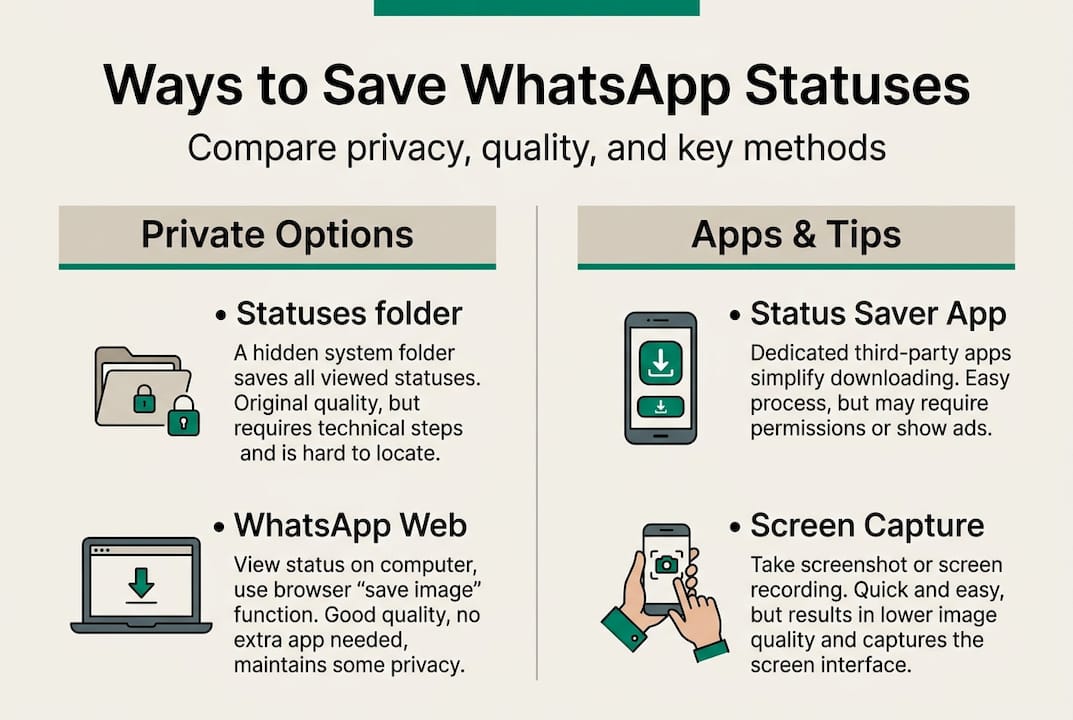
For video statuses on WhatsApp Web, the process is slightly different. You may need to open the video in a new browser tab and then save it from there. Either way, no extra software is required, and the file quality matches what the original poster uploaded.
iPhone users face a different situation. Apple’s iOS file system does not expose WhatsApp’s media folders to users the way Android does. That means the native folder method is not available on iPhone.
Here are the realistic options for iOS users:
- Screenshot or screen recording: These work but reduce image quality and capture the entire screen rather than just the status image.
- WhatsApp Web workaround: Log into WhatsApp Web on a Mac or PC, view the status there, and right-click to save. This gives you the original file quality even if you’re primarily an iPhone user.
- Third-party apps: Some iOS apps claim to save statuses, but they often require additional steps or permissions and may not preserve full quality.
| Platform | Best method | Quality | App needed |
|---|---|---|---|
| Android | Native .Statuses folder | Original | No |
| WhatsApp Web (PC/Mac) | Right-click save | Original | No |
| iPhone | WhatsApp Web workaround | Original | No |
| iPhone (no PC) | Screenshot/screen record | Reduced | No |
Pro Tip: If you’re on iPhone and want the highest possible quality, log into saving on WhatsApp Web from any computer browser before the 24-hour window closes. It’s the most reliable way to get the original file without any quality loss.
App alternatives, privacy, and ethical tips
With various tools available, it’s crucial to weigh your options for privacy, convenience, and respect.
Status saver apps offer a faster, more visual workflow. You open the app, it shows you all statuses currently stored on your device, and you tap to save. For users who view many statuses regularly, this convenience is real. However, apps are popular but the folder or web method protects your privacy better, and owners are not notified of saving by any method regardless of which approach you use.
Here’s a clear breakdown of what to consider when choosing your method:
- Permissions: Many status saver apps request access to your storage, contacts, or location. Review permissions carefully before installing.
- Ads: Free apps frequently display ads. If an ad-free experience matters to you, native methods or a trusted app like status saver apps with a clean record are better choices.
- Data collection: Some apps collect usage data. If privacy is a priority, the native folder method collects nothing because it involves no third-party software at all.
- Ease of use: Apps win on convenience, especially for users who aren’t comfortable navigating file managers.
You can review third-party saver guides to compare specific apps and understand their permission requirements before committing to one.
“Downloading is private by design, but ethics are key. Personal use is fine; public sharing without permission is not.”
The ethical side of status saving is straightforward but worth stating clearly. WhatsApp does not notify status owners when their content is saved. That privacy is built into the platform. But private saving does not automatically make public resharing acceptable. If you plan to repost someone’s status image on social media or forward it widely, ask for their permission first.
Pro Tip: Treat saved status images the way you’d treat a photo someone shared with you personally. Keep it for yourself unless you have explicit permission to share it further.
What most people get wrong about downloading statuses
Beyond methods and tools, let’s cut through the confusion about what’s truly safe, smart, and respectful when downloading WhatsApp statuses.
Most people assume that saving a status is either technically risky or socially questionable. Neither is true by default. The act of saving is private, straightforward, and widely practiced. The real risks are more mundane: a gallery cluttered with files you’ll never look at again, and the occasional lapse in judgment when sharing content without thinking about the original poster.
Status saving is not about snooping. It’s almost always about preserving something meaningful or useful before it disappears. That’s a reasonable, human impulse. The problem arises when saving becomes reflexive rather than intentional, or when the saved content gets shared without thought.
Long-term, the users who get the most value from saving statuses are the ones who practice status management tips and digital minimalism. Save what genuinely matters. Delete what you no longer need. And before you share anything publicly, pause and ask whether the original poster would be comfortable with that.
The technology is not the issue. The habit around it is what determines whether status saving serves you well or just adds noise to your digital life.
Save statuses easily with Hot Status Saver
Ready to make status saving even easier with a single tap? Here’s what to try next.
The Hot Status Saver app is built specifically for users who want a fast, private, and reliable way to download WhatsApp statuses without dealing with file managers or browser workarounds. It automatically detects statuses you’ve viewed, preserves original image and video quality, and saves directly to your gallery with no login or registration required.
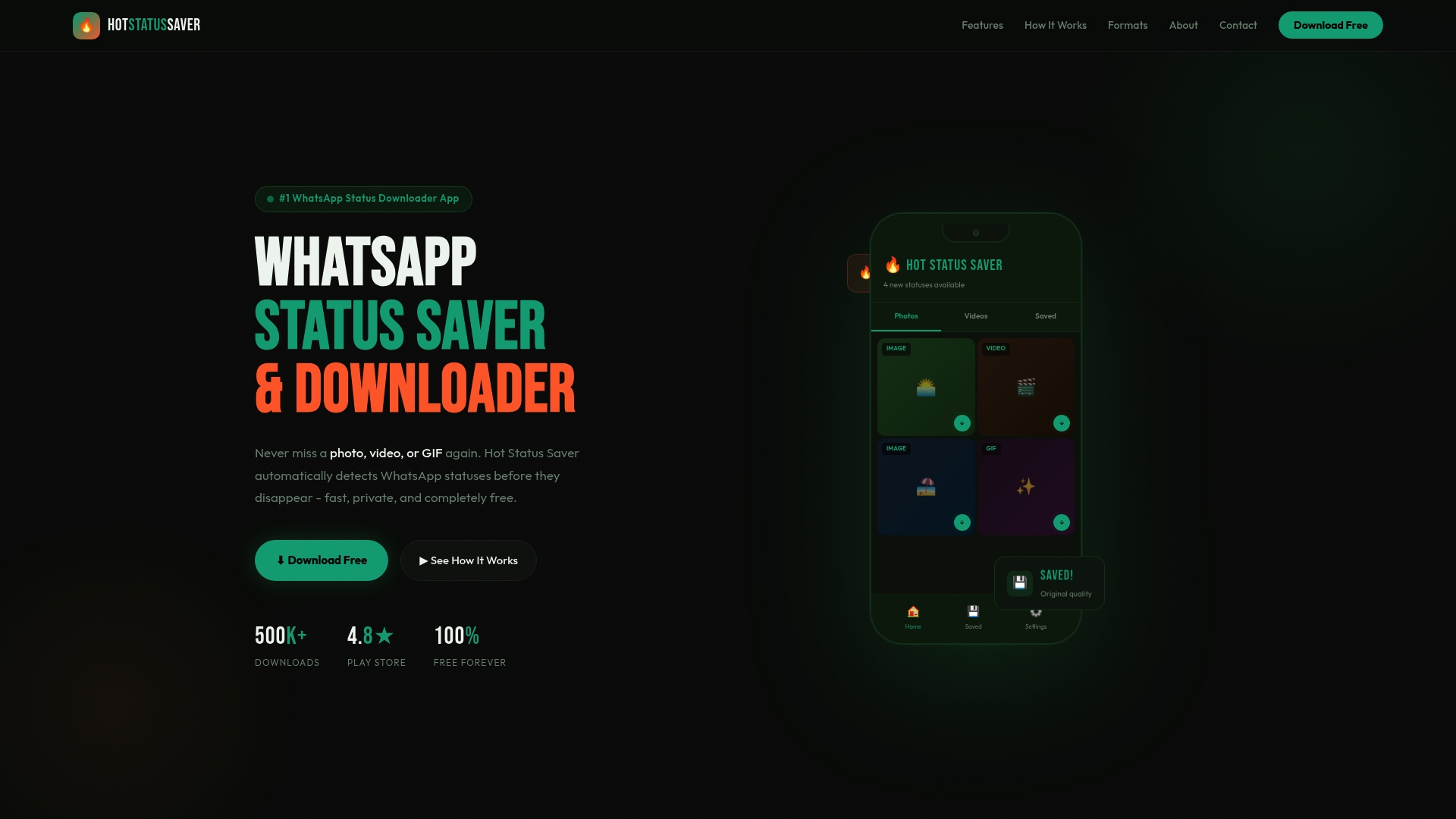
For users who want to go deeper, the detailed status saver tutorials cover everything from basic saving to organizing your saved media efficiently. Whether you’re new to status saving or looking to refine your workflow, Hot Status Saver gives you a clean, ad-free experience that respects your privacy from start to finish.
Frequently asked questions
Will someone know if I download their WhatsApp status image?
No, WhatsApp does not notify status owners when their images are saved by any method. The process is entirely private on the platform’s end.
What is the safest method to download WhatsApp status images?
Accessing the hidden .Statuses folder on Android or using WhatsApp Web on a PC are the safest options, as both methods require no external apps and leave the fewest traces.
Can I download someone’s status after 24 hours?
No. Statuses auto-delete after 24 hours, so you need to save the content while it’s still active and visible in WhatsApp.
Do status saver apps affect the quality of saved images?
Some apps may compress files during saving. Using the native folder or WhatsApp Web-on-android-and-iphone) always preserves the original upload quality without any compression.