TL;DR:
- WhatsApp does not provide a built-in way to save statuses to protect user privacy.
- Manual file access and privacy-focused apps are the safest methods to save statuses privately.
- Always verify app permissions and privacy policies to prevent data leaks when saving statuses.
WhatsApp statuses disappear after 24 hours, and there’s no built-in button to save them. That gap frustrates millions of users who want to keep a photo or video a friend shared before it vanishes. The challenge isn’t just technical. Many workarounds involve shady apps that demand registration, harvest your contacts, or sync your files to unknown servers. No official WhatsApp download exists for others’ statuses, so you need a method that works without putting your data at risk. This guide walks you through exactly that: safe, private, and registration-free ways to save statuses to your device.
Key Takeaways
| Point | Details |
|---|---|
| Privacy first | Always choose methods and apps that do not require your personal data or registration. |
| No official save | WhatsApp does not provide a built-in way to save statuses to protect user privacy. |
| Safe methods available | You can privately save statuses using trusted tools or by manually locating status files. |
| Check permissions | Review app permissions and privacy policies before installing any status saver. |
Understanding WhatsApp’s privacy rules and status restrictions
Saving statuses isn’t straightforward, and that’s by design. WhatsApp built its platform around end-to-end encryption and user privacy, which means it deliberately limits what third parties and even other users can do with shared content. Understanding these rules protects you from both policy violations and real privacy risks.
WhatsApp’s policies prohibit saving status updates to protect the person who posted them. The idea is simple: if someone shares a fleeting moment with their contacts, they should control how long it stays visible. Giving everyone a one-tap save button would undermine that control entirely.
Here’s what WhatsApp’s restrictions actually mean in practice:
- No native save button exists for viewing others’ statuses
- Screen recording is technically possible but may violate WhatsApp’s terms of service
- Third-party apps that integrate directly with WhatsApp’s API are restricted under the WhatsApp third-party policy
- Forwarding a status to yourself is not a built-in feature
The bigger concern is what happens when you turn to outside tools. Third-party apps often require personal data such as your phone number, email, or account login just to function. That’s a significant trade-off. You’re essentially exchanging your privacy to save someone else’s content.
“The safest approach to saving statuses is one that never touches your WhatsApp credentials or personal account details.”
Breaking WhatsApp’s terms of service can result in a temporary or permanent account ban. While enforcement is inconsistent, it’s a real risk worth considering. More importantly, apps that ask for excessive permissions, like access to your contacts or call logs, create vulnerabilities that go well beyond status saving.
For a deeper look at how these rules interact with practical saving methods, the complete status saving guide covers the full picture. The bottom line: the method you choose matters as much as the result.
What you need: Tools and prerequisites for private status saving
With policy limitations in mind, let’s get practical and look at what you need to prepare for a privacy-first status saving solution.
You have two main approaches: manual file access and app-based saving. Each has trade-offs in terms of convenience, privacy, and reliability.
| Method | Registration required | Privacy level | Ease of use |
|---|---|---|---|
| Manual file manager | None | High | Moderate |
| Status saver app (no login) | None | High | Easy |
| Status saver app (with login) | Yes | Low | Easy |
| Screen recording | None | Medium | Low |
The manual method involves navigating to the WhatsApp media folder on your Android device using a file manager app. WhatsApp temporarily stores statuses you’ve viewed in a hidden folder. You can copy files from there before they expire. It works, but it requires a few extra steps each time.
App-based saving is faster. The key is choosing the right app. Some status saver apps allow downloads with no sign-in or personal info, which significantly increases your privacy. Look for these characteristics before installing anything:
- No account creation or phone number verification required
- No cloud sync that uploads your saved files to external servers
- Minimal permissions such as storage access only, not contacts or location
- Clear privacy policy stating that no personal data is collected
- Positive reputation with verifiable user reviews
For device requirements, most reliable WhatsApp status saver apps support Android 5.0 and above, which covers the vast majority of Android devices in use today.
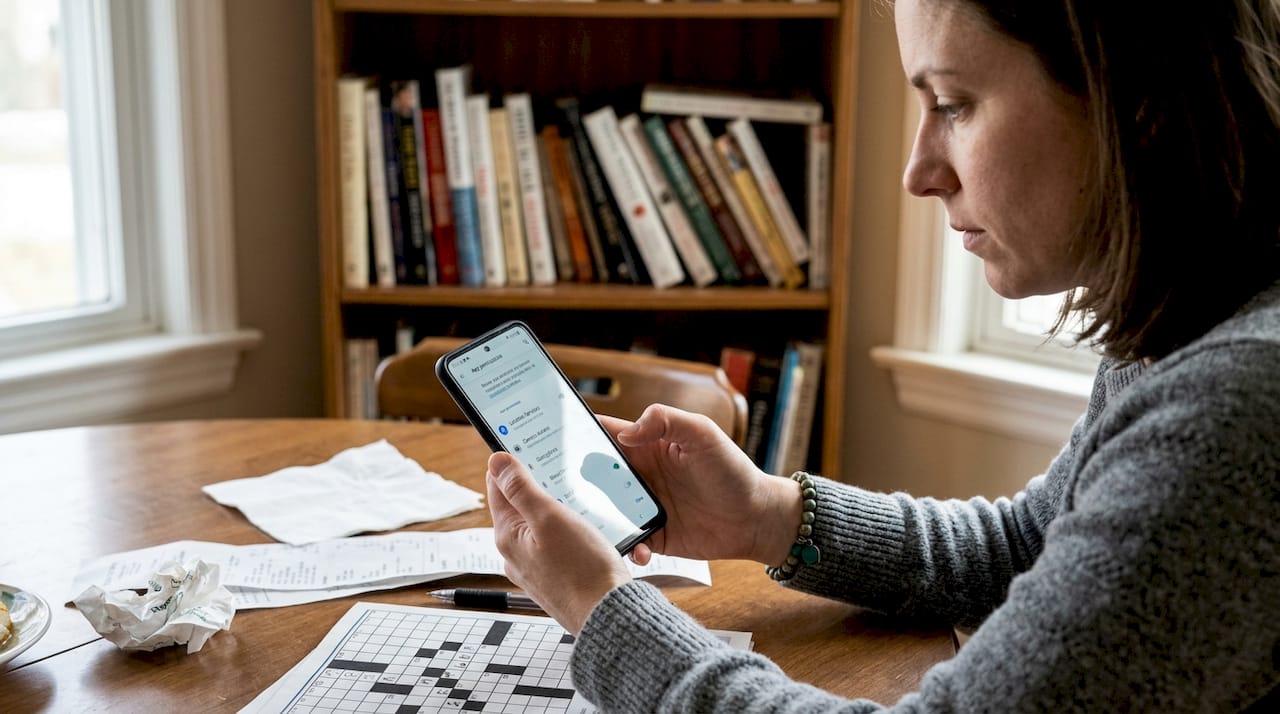
Pro Tip: Before installing any app, go to the app’s listing in the Google Play Store and scroll to the “Data safety” section. This tells you exactly what data the app collects and whether it shares anything with third parties. If that section is vague or missing, skip the app.
When you download WhatsApp status content using a no-registration app, you keep full control of your files. They stay on your device, in your gallery, without any external party having access.
Step-by-step: How to privately save WhatsApp statuses (safe methods)
Once you have the right tools ready, follow these steps to save statuses privately and securely.
Method 1: Manual file manager approach
- Open WhatsApp and view the status you want to save (this temporarily caches it on your device)
- Open your file manager app and enable “Show hidden files” in settings
- Navigate to: Internal Storage > Android > media > com.whatsapp > WhatsApp > Media > .Statuses
- Locate the photo or video file you want to keep
- Copy the file and paste it into a folder of your choice, such as your gallery’s Downloads folder
- Verify the file appears correctly in your gallery app
Method 2: App-based saving (no registration)
- Install a reputable status saver app that requires no login, such as Hot Status Saver
- Open WhatsApp and view the target status fully
- Return to the status saver app, which automatically detects recently viewed statuses
- Preview the content and tap the save or download button
- Confirm the file is saved to your gallery
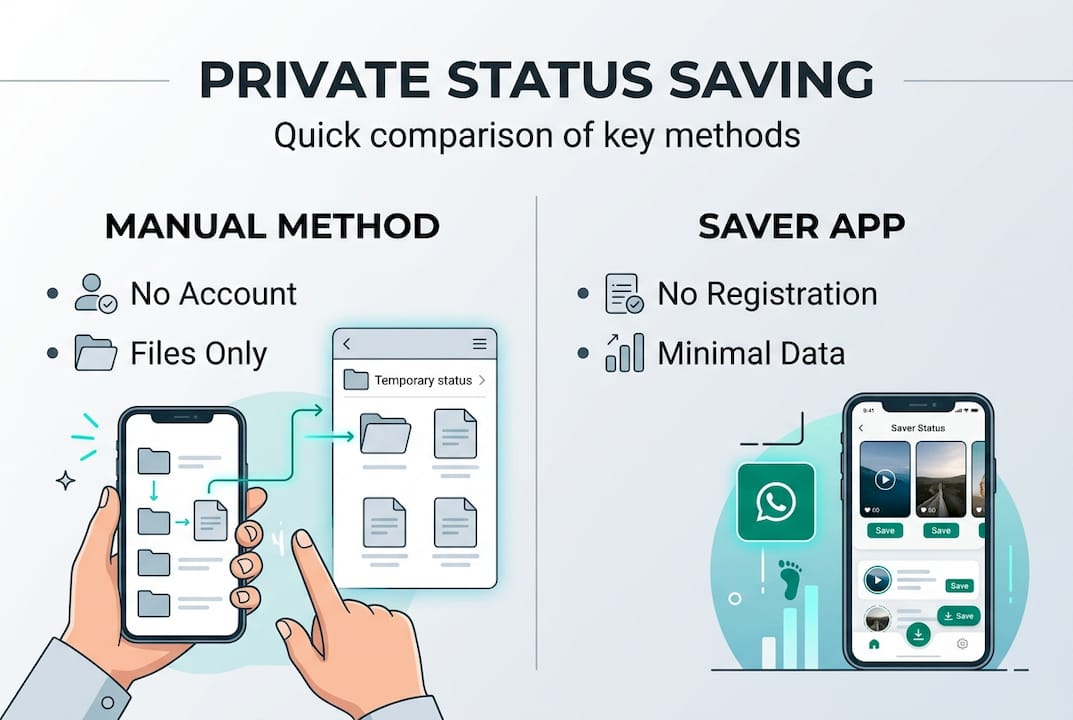
Here’s a quick comparison of both methods:
| Method | Time to complete | Leaves any trace | Notification to owner |
|---|---|---|---|
| Manual file manager | 2 to 3 minutes | No | No |
| App-based (no login) | Under 1 minute | No | No |
Status saver apps like Hot Status Saver don’t require creating an account, which means your identity is never tied to the action. Neither method sends any notification to the person who posted the status. WhatsApp does not alert users when their status is viewed or saved through third-party tools.
Pro Tip: Check app permissions immediately after installation. Go to Settings > Apps > [App Name] > Permissions. If you see permissions for contacts, microphone, or location that aren’t needed for a status saver, revoke them immediately or uninstall the app.
For a full walkthrough with screenshots, the status photos and videos guide provides additional detail for both methods.
Common mistakes and how to verify privacy safeguards
After following the methods above, it’s essential to make sure you avoided classic mistakes and your privacy remains protected.
Most users don’t realize they’ve made a privacy error until it’s too late. Here are the most common mistakes:
- Installing apps that request contacts access: This is one of the clearest red flags. A status saver has no legitimate reason to read your contact list.
- Using apps that require email or phone registration: Once you hand over that information, you lose control of how it’s used.
- Ignoring app update logs: Some apps add new permissions quietly through updates. Always review what changed.
- Saving to cloud-synced folders: If your gallery auto-syncs to Google Photos or another cloud service, saved statuses may be uploaded without your awareness.
- Using screen recording as a default method: It produces lower quality files and may trigger privacy flags depending on your device settings.
Apps asking for contacts or extra device permissions are privacy red flags you should never ignore. The permission model on Android is your first line of defense.
“A trustworthy status saver needs exactly one permission: access to your device storage. Nothing more.”
To verify your privacy is intact after saving a status, run through this quick check:
- Confirm the saved file is stored locally, not in a cloud-synced folder
- Open the status saver app’s settings and check whether any analytics or data sharing options are enabled, then disable them
- Review your device’s app permission log to confirm no unexpected access occurred
- Check that the app has no background data usage beyond what’s needed
For ongoing status saver advice and updates on safe practices, staying informed helps you catch new risks as they emerge. Privacy isn’t a one-time setup. It’s a habit.
Why most guides get WhatsApp status privacy wrong
Most how-to articles focus on whether a method works, not whether it’s actually safe. That’s the gap that puts users at risk.
The typical guide will tell you to install a popular app and tap save. What it won’t tell you is to check the app’s data safety declaration, verify it doesn’t sync to external servers, or confirm it hasn’t quietly added new permissions in a recent update. Those steps take two extra minutes and make an enormous difference.
Another pattern we see often: guides recommend apps that require registration, framing it as a minor inconvenience. It isn’t. Registration ties your identity to your saving activity. That’s the opposite of private.
The honest reality is that manual file access, while slightly less convenient, gives you the most control. No app involved, no permissions granted, no data shared. For users who prefer an app, the standard should be zero registration and storage-only permissions, full stop.
For practical privacy tips that go beyond status saving, the principles are the same: minimize what you share, verify what you install, and default to the method that keeps your data on your device.
A safer way to save WhatsApp statuses
If you want to skip manual methods and ensure privacy by design, the right app makes the process seamless.
Hot Status Saver is built specifically for users who want to save WhatsApp statuses without creating an account, sharing personal data, or dealing with intrusive permissions. It automatically detects statuses you’ve viewed in WhatsApp, displays them in a clean interface, and saves them to your gallery in their original quality.
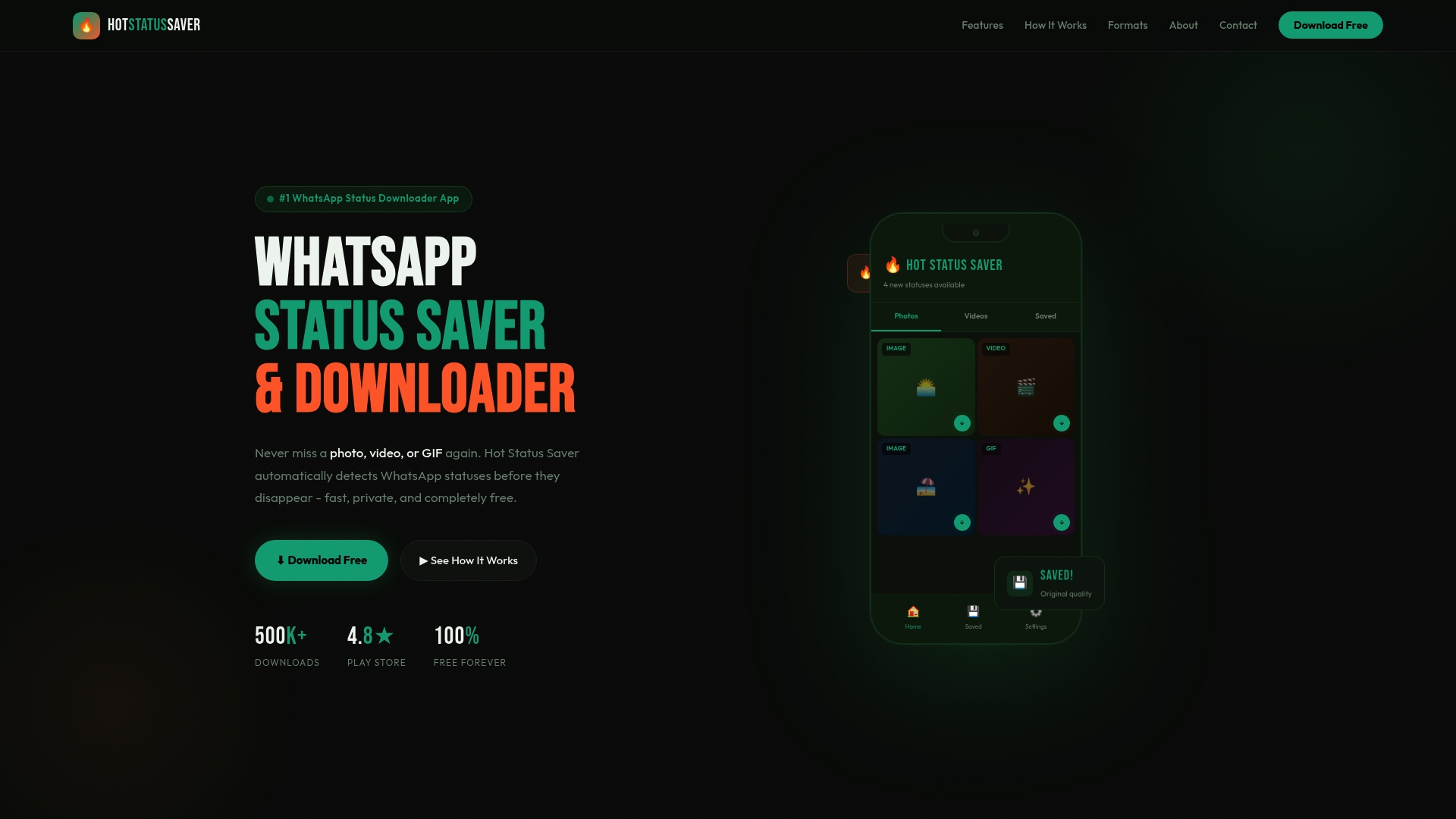
The app works on all Android devices running Android 5.0 and above, requires no registration, and collects no personal data. It’s free to use, and the focus is entirely on giving you a fast, discreet, and reliable way to keep the content that matters to you. If privacy-first status saving is what you’re after, this is the practical next step.
Frequently asked questions
Can you save WhatsApp statuses without notifying the owner?
Yes. Third-party methods do not send notifications to the status owner, so saving via a safe app or manual file access remains completely discreet.
What’s the safest type of app for saving statuses privately?
An app that requires no registration, no cloud sync, and minimal permissions is safest. Some apps allow downloads with no sign-in or personal info, keeping your data entirely on your device.
Does WhatsApp allow saving statuses officially?
No. WhatsApp’s policies prohibit saving status updates through built-in features, as the platform prioritizes the privacy of the person who posted the content.
How do I check if an app is private and safe to use?
Review the permissions it requests before installing and read its privacy policy. Apps asking for contacts or extra permissions beyond storage access are a clear warning sign to avoid.